Jailbroken Nvidia Shield Home Setup: Internet & Network Essentials
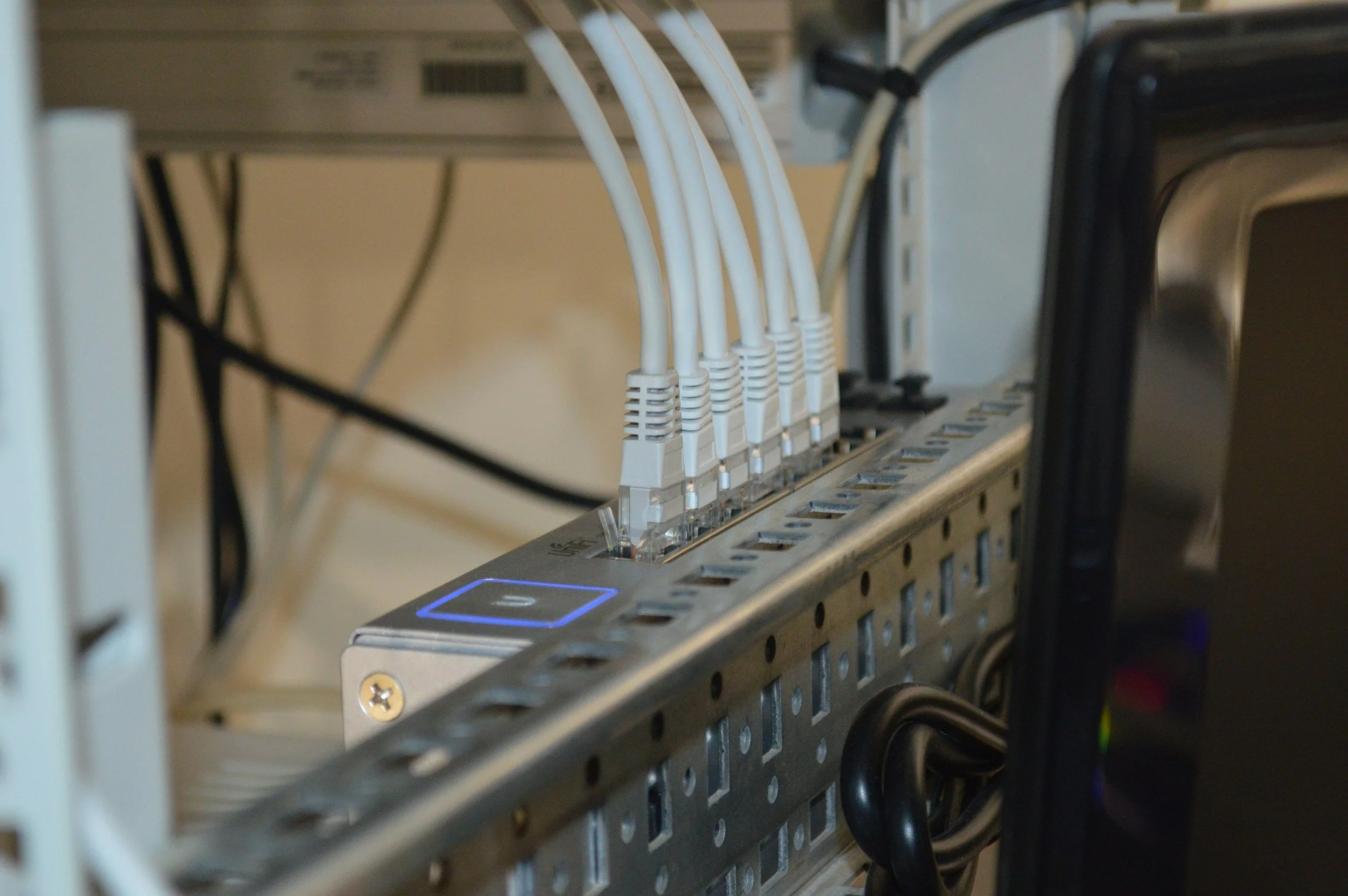
Get them ethernet cables ready.
Hello and welcome back to the series. This part is called “Jailbroken Nvidia Shield Home Setup: Internet & Network Essentials.”
We’ve finally arrived at the most important piece of your home setup, the internet itself. And yes, I know a lot of you skip over this part because you assume, “Well, I already have WiFi, so I’m good.” But let me stop you right there. Your home network is the foundation of everything. It’s the single biggest factor that will determine if your Jailbroken Nvidia Shield Pro runs smooth as butter… or if you’re left staring at a buffering screen during the big fight or your favorite show.
This blog is packed with information most people never get told about their internet. Some of this you might already know, but I guarantee there are details here that will make you stop and think, “Wait… I’ve never checked that.” That’s the point, I want you to not just read this once, but come back to it whenever you need a refresher.
Now let me ask you a few simple questions:
When was the last time you actually set up your internet?
Did you do it yourself, or did some tech from the ISP just pop in, plug in a modem, and disappear?
How long have you been running the same equipment without giving it a second thought?
Why am I asking? Because your answers tell me a lot about the health of your setup. If your internet was installed five years ago and you’ve been paying the same bill every month, chances are the equipment is outdated, or worse, you’re paying for a plan that’s not even giving you the speed you think you’re getting.
Here’s a tip hardly anyone takes advantage of: once a year, walk into your internet service provider’s (ISP) local office and ask about new promotions, upgrades, and return their equipment to them. Companies push “new customer” deals all the time, but existing customers? They’ll keep charging you the same old rate until you speak up. I’ve seen people shave $40–$50 off their monthly bill just by asking. And sometimes, by returning their equipment even more off your bill because you are no longer renting trash equipment.
Now let’s talk about the elephant in the room: buffering and lag.
If you’re streaming sideloaded APKs, you already know what I’m talking about. That annoying pause in the middle of a fight, the stream freezing right before the knockout punch, or the audio getting out of sync. It drives people crazy. And here’s the truth, half the problem comes from the device itself, but the other half almost always comes from your home internet setup.
That’s why this part of the series matters. Because once you understand how your internet works, what equipment you actually need, and how to set it up the right way, you’ll finally have a stable, powerful streaming setup that feels future-proof.
I’m super excited to share my own story and experiences here, not just theory, but real-world fixes that worked for me and my team. My hope is that by the end of this, you’ll walk away with confidence about your home internet setup, and you’ll know exactly what steps to take if things ever slow down.
So let’s jump in.
Table of Contents
Router & Modem Setup for Jailbroken Nvidia Shield Pro
Wired vs Wireless: The Eternal Battle
Mesh Network Systems: Worth It?
Troubleshooting Common Internet Issues with the Jailbroken Nvidia Shield Pro
Final Checklist for Internet & Network Setup
In Conclusion: Streaming Without the Stress
Shop Now > Discord >
Why Your Internet Connection Matters More Than Anything
Signal is everything
The reason my home internet connection matters is simple, it runs both my work and my entertainment. What about you? Take a second and think about how you use it. Your internet connects you to the outside world in ways you probably don’t even think about anymore.
Need to schedule a doctor’s appointment? You hop online.
Taking a college class? That’s online too.
Job hunting? You’re applying through the internet.
We use the internet for more things today than we ever did before. It’s become our lifeline.
But you know what makes using the internet miserable? Buffering. Lag. Pages taking forever to load. And if you’re still running on old WiFi 2.4GHz, you know exactly what I mean.
For streaming, especially on a box like the Jailbroken Nvidia Shield Pro, buffering can ruin the experience. Imagine sitting down to relax, ready to watch your favorite show, and suddenly the stream freezes. That’s frustrating. Half the time, this issue comes from the device you’re using. Cheap boxes like Fire Sticks, Onn boxes, and other budget streaming devices just aren’t built for sideloaded apps. Their hardware and operating systems are limited, so performance suffers.
The other half of the problem? Your internet setup.
Why You Need Your Own Modem and Router
If you’re still using the modem/router your ISP handed you, that’s mistake number one. ISP-provided equipment is usually the cheapest, weakest gear they can get away with. They don’t care if it slows you down, because most people won’t question it.
Buying your own modem and router is the upgrade you need. There are endless reviews and YouTube channels that break down options, but if you want my recommendation, start with the Flint 2 from GL.iNet. It’s a powerful router that handles streaming and security beautifully. They also make excellent travel routers, which is a nice bonus.
As for the modem, don’t skimp here either. A quality modem makes a massive difference because your neighbors share bandwidth with you. When everyone on your block is home and streaming at the same time, things slow down. But if you own your modem, it’s like having a stronger engine, you’re not stuck crawling at the same speed as everyone else. Your modem pulls more power and keeps your service steady.
The modem I have my eyes own right now is the Netgear Nighthawk CM2000 but I’ve noticed it’s been discontinued. I’m still going to look around for this one. The newer model is the Netgear Nighthawk CM3000.
When buying a modem or a router don’t use Amazon. Go in person to Best Buy, B and H, or Microcenter. You want to make sure your item is new. I see so many reviews on Amazon of people getting used routers, or certified refurbished. Never buy anything refurbished, they don’t come with warranties.
Why Ethernet Still Beats WiFi

Photo screenshot from Jailbroken Nvidia Shield Pro
Now let’s talk connection. Your Jailbroken Nvidia Shield Pro is only as strong as the internet you feed it. That’s why step one is always: plug in an ethernet cable.
Ethernet gives you a direct, stable connection because it uses a copper cable wrapped in shielding. That shielding prevents interference. WiFi, on the other hand, runs on radio waves that can easily be disrupted by walls, by distance, even by the number of devices connected.
Yes, newer WiFi standards like WiFi 5, WiFi 6, WiFi 6E, and WiFi 7 are fast. But speed alone doesn’t mean stability. The higher you go, the more fragile those radio waves become. A wall, a floor, or even a closed door can block them. That’s why many people end up needing a mesh network to spread WiFi evenly throughout the house. Think of it like putting mini satellite dishes inside your home, all working together to cover dead spots.
WiFi is fine for your phone, laptop, cameras, and other portable devices. But for streaming? For gaming? That’s a whole different story. Just like you’d never rely on WiFi alone for a high-end gaming PC, you shouldn’t for a streaming device either. Gamers talk about pings, the speed of your connection response time. The lower your ping, the smoother your experience. It’s the same with streaming. Plugging in with ethernet ensures your Jailbroken Nvidia Shield Pro has the stable connection it needs to run without lag or interruptions.
Shop Now > Discord >
Choosing the Right Internet Plan for Streaming
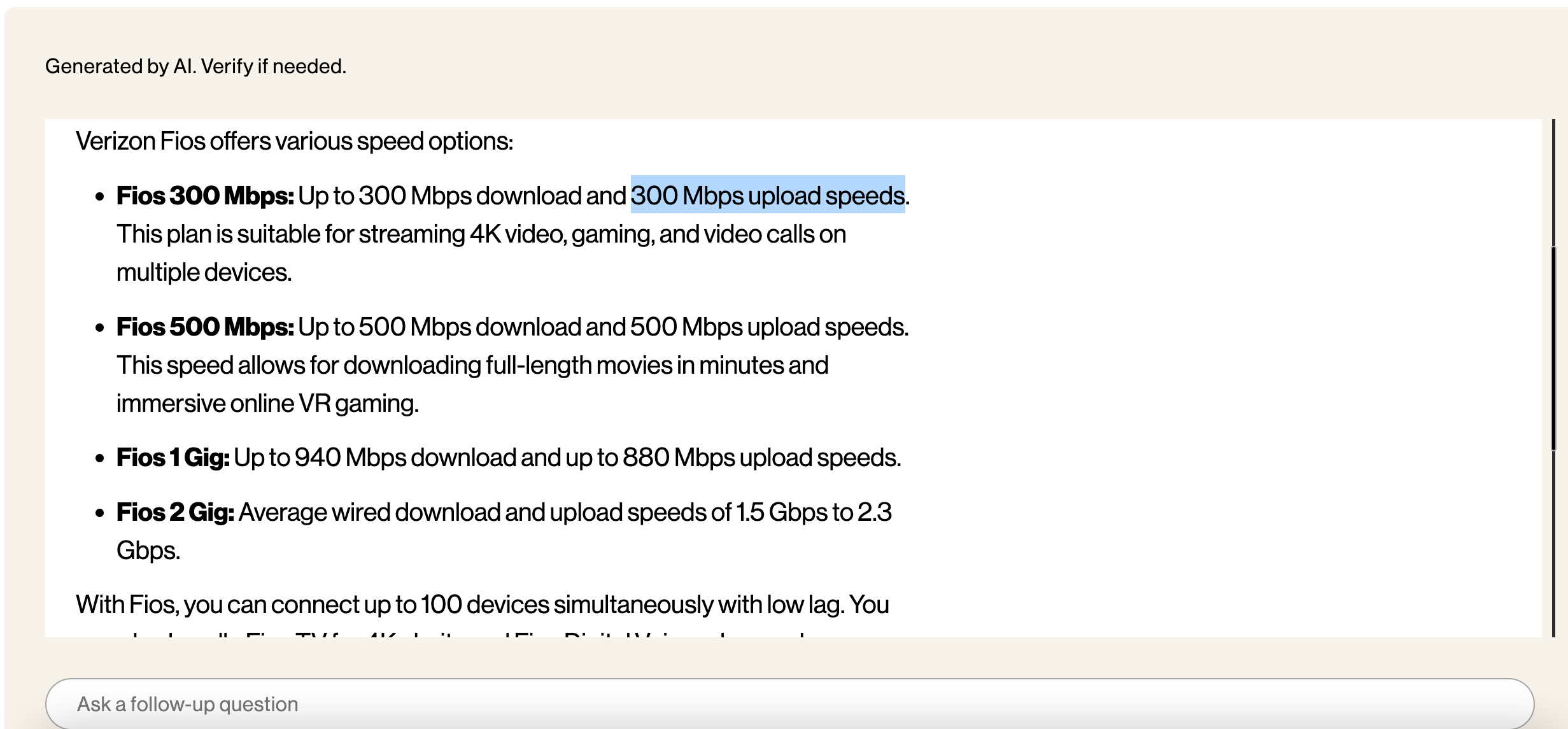
Your upload speeds is what you need when streaming on APKs.
This is a big one, maybe the biggest of them all. Who’s your internet provider right now? Are you with a cable company, or do you have access to fiber optic internet?
Let me share a quick story. I used to have Verizon Fios. On paper, it looked amazing ,super high speeds, fiber optic technology, all the buzzwords. But here’s the catch: it was installed incorrectly by the technician, and when they came back to fix it, I learned something that changed how I looked at internet service.
The more people in your building who also have fiber optic service, the slower your speeds become. That blazing fast “600 Mbps download and 600 Mbps upload” suddenly feels like molasses when your neighbors are all home streaming, gaming, or downloading at the same time.
Fiber optic is still incredible. It’s fast, stable, and usually a better experience than cable. But in apartments or crowded neighborhoods, that shared network can cause issues. And here’s another fun fact: with fiber, you don’t use a modem. You just connect through a router.
Between cable and fiber optic, if you have the option, always go with fiber. When it’s installed properly, it’s hands-down the smoother experience. Lower ping for gaming, better performance for streaming, and fewer interruptions across the board.
The only beef I personally have with Verizon is they run a hard credit check just to give you service. For me, that’s not worth it. So, my advice: check your area to see if another provider offers fiber optic service. Sometimes there are local or regional companies that do it without the big hoops to jump through.
Minimum Speeds Needed for Streaming in 4K
Let’s talk numbers. How much speed do you actually need?
For movies, TV shows, and anime: 50 Mbps is usually enough. If you’re watching in 720p or 1080p, you’ll be fine.
For 4K, HDR, or Dolby Vision: Now you’re in the heavy zone. One movie in 4K can range from 2GB to 64GB in data. That’s why your internet plan needs to handle bigger loads.
For live TV, sports, or PPVs: This is where the real power is needed. Minimum 100 Mbps and up, no exceptions.
Here’s why: on-demand content like movies and shows can buffer ahead of time. Live content can’t. You’re pulling a constant, uncompressed feed, often from sideloaded APKs that aren’t optimized like Netflix or Hulu’s official apps. Even the “big guys” crash, remember when Netflix went down during Jake Paul vs. Mike Tyson, or when the NFL’s Sunday Ticket app melted during game day?
Live streaming is demanding. If you can get a 1 Gbps (1,000 Mbps) plan, that’s phenomenal. It’s like driving in the fast lane with no traffic.
Upload vs. Download Speeds (Don’t Forget Upload!)
Here’s something most people overlook: upload speed matters just as much as download speed for streaming stability.
When you stream, your device isn’t just pulling data (downloads), it’s also sending signals back out (uploads). It’s the same process as when you upload a YouTube video or post a picture to Instagram.
Back in the day, internet use was download-heavy surfing web pages, downloading music, maybe loading a few pictures. Uploads didn’t matter much. But today? With streaming, gaming, video calls, and sideloaded APKs, uploads are critical.
Think about it: when you’re pulling a stream from a sideloaded app, you don’t always know the file size or the server it’s coming from. If your upload speed is weak (like the common 10–20 Mbps you get from many cable providers), buffering is guaranteed the second there’s action on-screen.
This is where fiber optic crushes cable. Fiber gives you symmetrical speeds, your upload and download speeds are the same. If you’re paying for 500 Mbps, that’s 500 down and 500 up. Cable providers, on the other hand, are still behind. You might get 500 Mbps down but only 20 Mbps up. And trust me, that’s not enough for smooth sideloaded streaming.
Can you hack or boost your upload speed on cable? Honestly, not really. I’ve tested every trick and “speed boost” video out there, and nothing makes a lasting difference. For upload-heavy streaming stability, fiber is king.
Avoid Data Caps (ISPs That Throttle Hurt Streaming More Than You Think)
Let’s clear this up: when most people hear “data caps,” they think of their phone plan, like the 10GB or 20GB of mobile data you’re allowed to use before your carrier slows you down. But with home internet, it’s not always about a hard cap. Instead, ISPs (Internet Service Providers) often throttle your connection when they don’t like what you’re doing online.
And you know what they don’t like? Sideloaded streaming.
Let me share a real story. Back in 2018, I had just loaded a Fire Stick with some sideloaded APKs. The next morning, I tested it out, and none of the links would load. I thought maybe it was the apps, maybe the device, maybe even my WiFi. I spent hours digging online looking for an answer.
Finally, I decided to try something that, at the time, wasn’t as popular for streamers: I installed a VPN. The second I turned it on, the APKs worked again. That’s when I realized what was really happening my ISP could see the traffic and was throttling my internet.
And this wasn’t just me. Around that summer, ISPs across the U.S. started quietly rolling out this kind of throttling. They didn’t shut your internet off, but they slowed down specific types of traffic that looked like streaming from unofficial apps. Guess what got hit the hardest? Cheap devices like the Fire Stick.
That’s one of the main reasons I stopped using Fire Sticks entirely. They were too easy for ISPs to target, too weak to push through throttling, and too limited in what you could do to protect yourself.
This is why, today, if you’re streaming on any device that isn’t fully optimized by us, you need to turn on a VPN (Virtual Private Network). A VPN masks your traffic, so your ISP can’t easily tell whether you’re browsing the news or streaming a live UFC fight through a sideloaded APK. No visibility means no throttling.
With stronger devices like the Jailbroken Nvidia Shield Pro, paired with a good VPN, you bypass this whole mess. That’s the difference between sitting through constant buffering and actually enjoying a smooth, high-quality stream.
Shop Now > Discord >
Router & Modem Setup for Jailbroken Nvidia Shield Pro
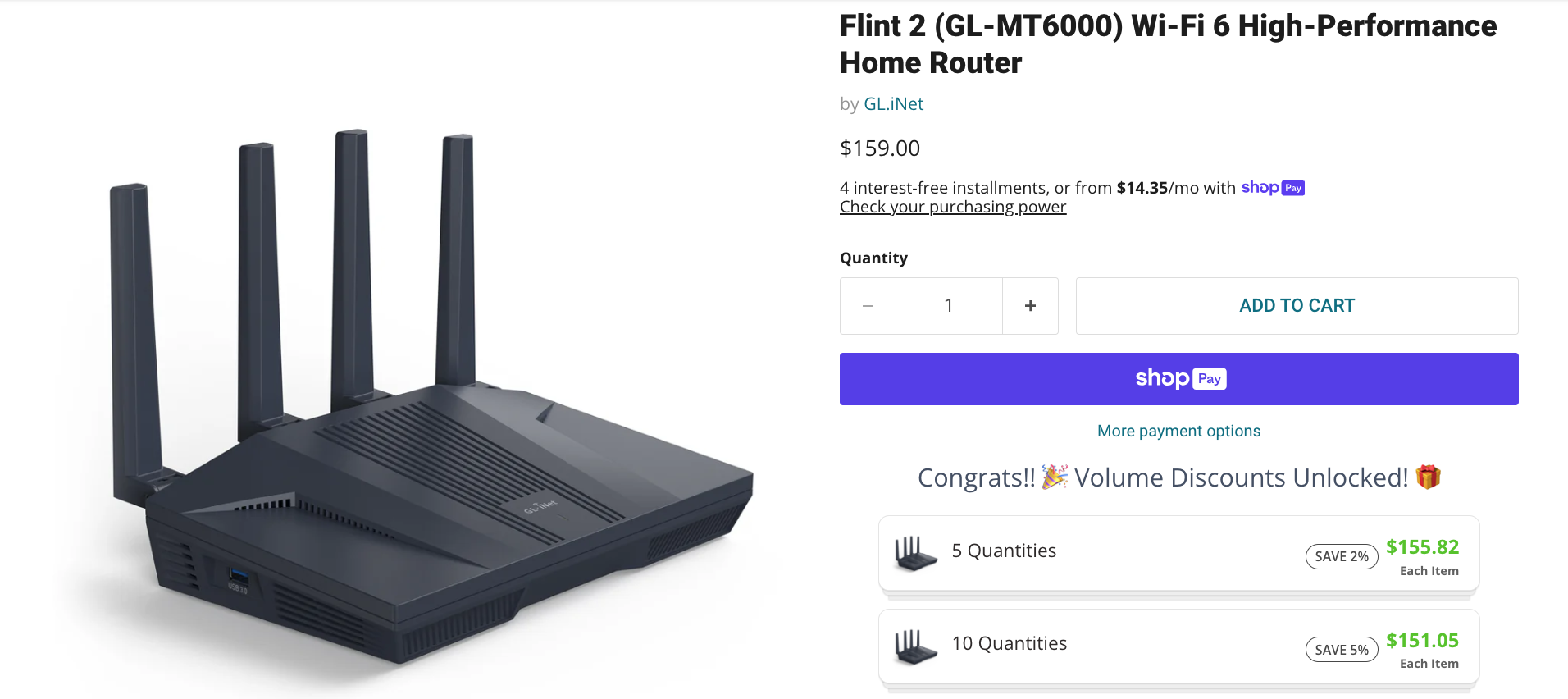
Best router ever, Flint 2! NOT a sponsor.
If you read our first blog in this series, “Jailbroken Nvidia Shield Home Setup: Entertainment Room,” you know the router should be in the same room as your device. But here’s something I overlooked before: not everyone sets up internet the same way.
For example, in houses, you can have Ethernet wall jacks wired throughout your rooms. That means you can place your router in a central location, plug directly into the wall, and still get wired connections wherever you need them. In apartments (like mine), that’s not usually the case. City layouts are built differently, so you might end up running Ethernet cables along the baseboards or across the floor. Not ideal, but still better than weak WiFi.
The takeaway? Keep your router close to your Shield Pro whenever possible, and use Ethernet if you can.
Why ISP Rental Equipment Fails (Cheap, Locked-Down Gear)
Most people don’t even think about this—but your ISP’s rental equipment is trash. And the ISPs know it. They’re not giving you high-performance gear, they’re giving you the cheapest, most locked-down modem/router combo that barely gets the job done.
And here’s the trick: they charge you $10–$15 extra a month for it and call it “WiFi.” Over a couple years, you’ve basically paid for two or three high-quality routers—but you’re stuck with the ISP’s weak hardware that limits your speeds, your coverage, and your ability to stream on a jailbroken device without buffering.
That’s why rule #1: never rely on ISP rental equipment.
Best Modem + Router for Streaming Devices
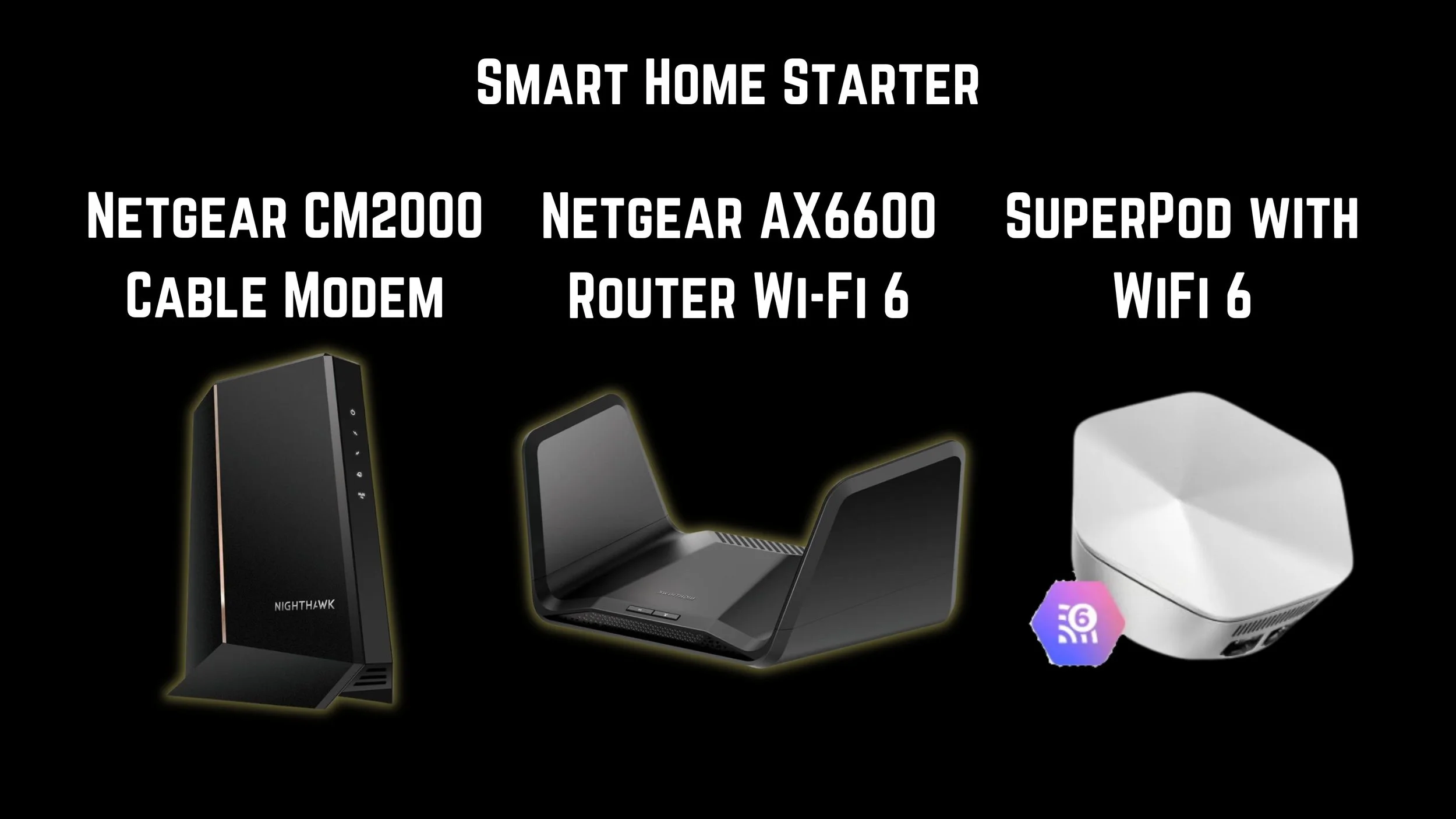
NOT the AX660 router, GET the Flint 2 for sure.
For a modem, one of the best I’ve used is the Netgear CM2000. Yes, it’s discontinued, but you can still find it at reliable stores like Best Buy, B&H, or MicroCenter. The newer model is the CM3000, which works fine too. Personally, I’ll still hunt down a CM2000—it’s rock solid.
⚠️ Warning about Amazon: I don’t recommend buying modems from there. Too many customers are reporting receiving used or “certified refurbished” units even when they paid for new. That’s a big problem because:
Refurbished gear often comes with no warranty.
If it breaks, you’re on your own.
You don’t know how the previous owner treated it.
So when it comes to modems, always go brand new, factory sealed.
For the router, my recommendation is the Flint 2. But here’s the key: order it directly from the manufacturer’s website. Not Amazon. Not third-party sellers. You’ll get better security, a real warranty, and no risk of “mystery box” used gear.
Placement Tips for Maximum Signal (keep it visible, not in a cabinet).
Here’s a mistake I see all the time: people hide their router and modem. They shove it into a TV stand cabinet, tuck it in a closet, or even put it behind the TV to “keep the room looking clean.” The problem? That kills your WiFi signal and chokes the device with heat.
Your modem and router are the heart of your home’s internet. They need airflow, they need space, and most importantly—they need visibility. If your router is hidden behind thick wood or glass, or surrounded by a mess of other electronics, the WiFi signal will weaken before it even has a chance to reach your devices.
Think of WiFi like light. If you block it with walls, cabinets, or objects, the light gets dimmer and weaker. The same thing happens with your internet connection.
Now, let’s talk setups:
For houses: If you’re lucky enough to have Ethernet wall jacks, this is where you win. You can keep your router in one central room (like the living room or entertainment space) and run clean, stable Ethernet lines to other rooms. This way, your router doesn’t have to sit right next to the TV but still delivers strong wired connections where you need them.
For apartments (like mine): Things are a little trickier. Most apartments don’t have Ethernet wall jacks, which means you’re running cables along the baseboards or across the floor. That’s okay—just don’t hide the router in a cabinet. Keep it on an open shelf or table where the air can flow and the signal has no obstacles.
Pro tip: The closer your router is to your Jailbroken Nvidia Shield Pro, the better. If you can, put the router in the same room, and always run an Ethernet cable directly into the Shield Pro. That way you’re not depending on radio waves at all for your main streaming device.
Bottom line: keep your modem and router visible, open, and in the right room. Your internet will run smoother, your Shield Pro will stream without buffering, and you won’t burn out your gear from overheating.
Shop Now > Discord >
Wired vs Wireless: The Eternal Battle

Ethernet wins everytime
WiFi has its place, no doubt. When you’re out and about, or when your phone’s data isn’t cutting it, WiFi saves the day.
Inside the home, WiFi works great for handheld devices, tablets, smart speakers, and small gadgets that don’t need a constant high-powered connection. It even shines for outdoor gear like smart cameras, where the long reach of WiFi 2.4GHz comes in handy.
But let’s be real: WiFi is not reliable for serious streaming or gaming. Not if you care about stability, speed, and zero lag. And it’s especially not reliable when running sideloaded APKs on a jailbroken device.
Here’s why: cheap streaming devices like Fire Sticks or Onn Box Pros are designed only for official app store software. Their WiFi chips and memory are bare minimum—just enough to run Netflix or YouTube. Start loading in APKs that push heavy data (live TV, sports, PPVs), and WiFi just can’t keep up. Buffering, lagging, and even app crashes are common.
And let’s not forget, companies like Amazon are actively blocking APKs on their devices. That leaves the Nvidia Shield Pro as your best weapon—but even then, streaming piracy on WiFi is asking for headaches. The bandwidth demands are too high, and your connection will choke right when the action heats up.
Why Ethernet Always Wins (Direct, Stable, Lag-Free)
Here’s the simple truth: Ethernet is king.
If you have cable internet (like most people), plugging in an Ethernet cable gives you the best possible download and upload speeds—no interference, no dropped signals, no random slowdowns. Unlike WiFi’s radio waves, an Ethernet cable is shielded and secure.
Even if you’re stuck with a “basic” internet plan, Ethernet makes it feel faster. That’s because stability matters more than raw numbers. A wired connection means:
No interference from neighbors’ WiFi signals.
No walls or floors blocking your connection.
No sudden drops in speed when everyone else in the house hops online.
Bottom line: if your device can be wired, wire it.
When WiFi Makes Sense (Casual Users, Mobile Devices)
Now, I’m not saying WiFi is useless. Far from it. For casual users who just stream Netflix, Hulu, or YouTube, WiFi is fine. If you’re on a tablet, phone, or a smart TV in a bedroom, you don’t need to drill holes in walls or run cables everywhere.
WiFi makes sense for:
Browsing the web on your phone.
Watching regular streaming apps (not APKs).
Smart home gadgets like lights, speakers, and security cams.
But if you’re serious about sideloaded APKs, sports streaming, or PC gaming, you’ll regret staying on WiFi. Unless you are using a low powered hand held device like your phone and tablet, this is where APKs will work but still a little slower.
WiFi 2.4 vs 5 vs 6/7 (Range vs Speed Explained Simply)
Here’s a breakdown that even a 3rd grader can get:
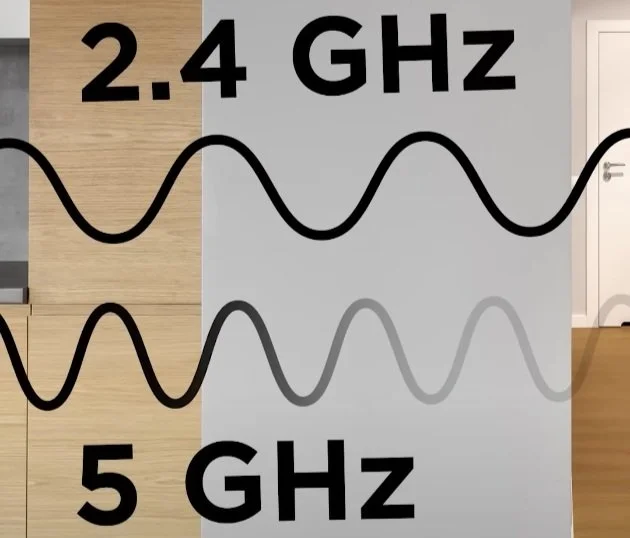
WiFi 2.4GHz = Long range, slow speeds. Great for outdoor cameras or devices far from the router.
WiFi 5GHz = Faster, but shorter range. Perfect for the same room as your router.
WiFi 6/6E/7 = Super fast on paper, but the range is tiny. These signals can’t even leave the room reliably. Amazing for gaming or 4K streaming, if your router and device both support it and they’re close by.
So, think of WiFi like this:
2.4GHz = “I’ll reach the garage, but I’ll crawl.”
5GHz = “I’m quick, but don’t make me walk through walls.”
6/7 = “I’m a rocket, but only inside this room.”
⚡Pro tip: If you’re setting up a jailbroken Nvidia Shield Pro, use Ethernet first. Only fall back on WiFi 2.4GHz if running a cable is impossible.
Shop Now > Discord >
Mesh Network Systems: Worth It?
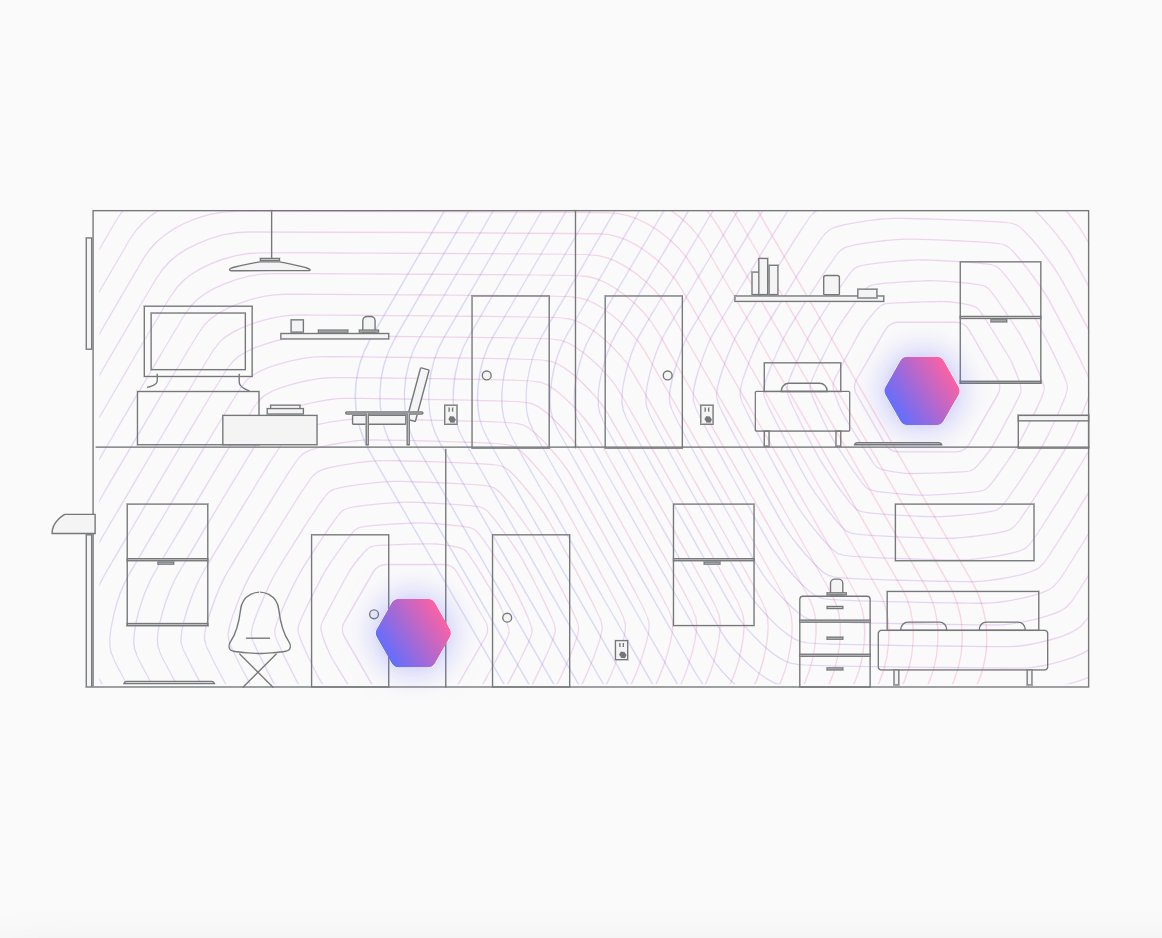
Just plug in and you are good to go all over your home.
It’s 2025, and every home should have a mesh network system. We have too many devices today that all need the internet. One router is not enough, and I don’t recommend extenders. What you need is a mesh network system.
Don’t know what that is? Think of it like satellites in space. They spread out and give equal connection across the whole home. Once I understood this, it all clicked.
Back in my first Brooklyn apartment, the walls were solid brick and steel. WiFi 5 couldn’t pass through, not even close. That’s when I picked up my first mesh system in 2018.
But not just any system, I chose one that had its own app. With the app, I could:
Make guest logins so people didn’t know my real password.
Stop too many devices from slowing my network down.
Kick people off when they left.
The system I used was Plume Pods. In 2018, Eero and Orbi were more popular, but I didn’t like their design. You had to set them on a table, while Plume Pods plugged right into the wall simple and clean.
The only drawback? Fake versions. On Amazon, other companies copied the pod design and tricked people into thinking it was Plume.
So who needs a mesh network? Homes or offices with dead zones. If WiFi doesn’t reach the bedroom or the office, just plug in a pod and you’re covered. It spreads WiFi evenly across the home.
Best part, you can even use mesh systems with Ethernet backhaul. That means faster, stronger, and more stable internet for streaming on your Jailbroken Nvidia Shield Pro.
Shop Now > Discord >
Troubleshooting Common Internet Issues with the Jailbroken Nvidia Shield Pro
With the device deGoogled, it should run pretty smooth if you do as we say, which is plug in those Ethernet cables. If not, use WiFi 2.4GHz, it will be a little slow to load but the connection is stable and you won’t see much buffering.
When you first get the device, I recommend testing your WiFi speed on the device. There is an APK already on the device for this. It breaks everything down, letting you know which pixel quality is good to stream on the device. I added a photo to show you.
Buffering During Big Events (Super Bowl, UFC, NBA Finals)

Buffering drives people crazy
If you see buffering during big events, there could be too many people pirating that same server. If you own your own modem and router, your equipment shouldn’t buffer. If it somehow does, plug in your ETHERNET cable. You need strong, stable power to stream live TV, sports, and PPVs.
WiFi 2.4GHz without a mesh system can get this done. Have a mesh system? Still use WiFi 2.4GHz for a stable connection. I believe WiFi 5 will still buffer remember, it’s easier to disturb WiFi 5 compared to WiFi 2.4GHz.
Please, don’t run a Jailbroken Nvidia Shield Pro on your ISP-rented equipment. During peak hours, your internet speeds will slow down. And you need more upload speed now than ever to stream. During peak hours, upload speeds drop by half.
Router Keeps Dropping WiFi (firmware updates, overheating)
I don’t like this statement or question. Whose router?
A router you paid for from the store? Go get a new one or the latest model.
The router from your ISP? It’s trash. Of course it keeps dropping WiFi. Plug in that Ethernet cable. Don’t even try running a firmware update.
If it’s overheating, it’s done. I don’t try to keep things alive when they are dying. Just let it go. You waste so much of your TIME, which is already limited, when you can pay a little money to just replace the problem.
Don’t waste a lot of your TIME just to save a little bit of money. You can always earn more money, but you cannot earn more TIME.
Apps Won’t Connect (DNS settings, Play Protect blocking sideloads)
You have to use ADB debugging to disable Play Protect on your device. Go ahead and disable the Play Store also, they are linked together somehow. I’m starting to see this a lot with Fire Sticks and the FlixVision APK. Fire devices now have a built-in blocker for the FlixVision APK.
Why? That APK is full of malware. I know they made another one with less malware but still, I wouldn’t touch that APK.
Other APKs I know get blocked as soon as you try to load them. You have to wait for a Play Protect screen to pop up asking if you want to download the APK anyway, knowing it’s unsafe. Just click, “Keep App.”
Sometimes the device will see that and still disable the APK without your permission. The only way to get it back is to uninstall and reinstall. This is why you want to just deGoogle your streaming device altogether from here on out.
With the Jailbroken Nvidia Shield Pro, you will not have any of these problems. We knew of these problems years ago and have already solved them with our Elite System. Our Elite System offers you everything in one place all paid and free subscription apps, just click and play. Same for live TV, sports, and PPVs. All in one place, just click and play.
Shop Now > Discord >
Final Checklist for Internet & Network Setup
✅ Own your modem + router
✅ Use Ethernet if possible
✅ Backup mesh system for weak spots
✅ Test speeds before big watch parties (Not for businesses, you can get a fine.)
Shop Now > Discord >
FAQ for Internet & Network Essentials
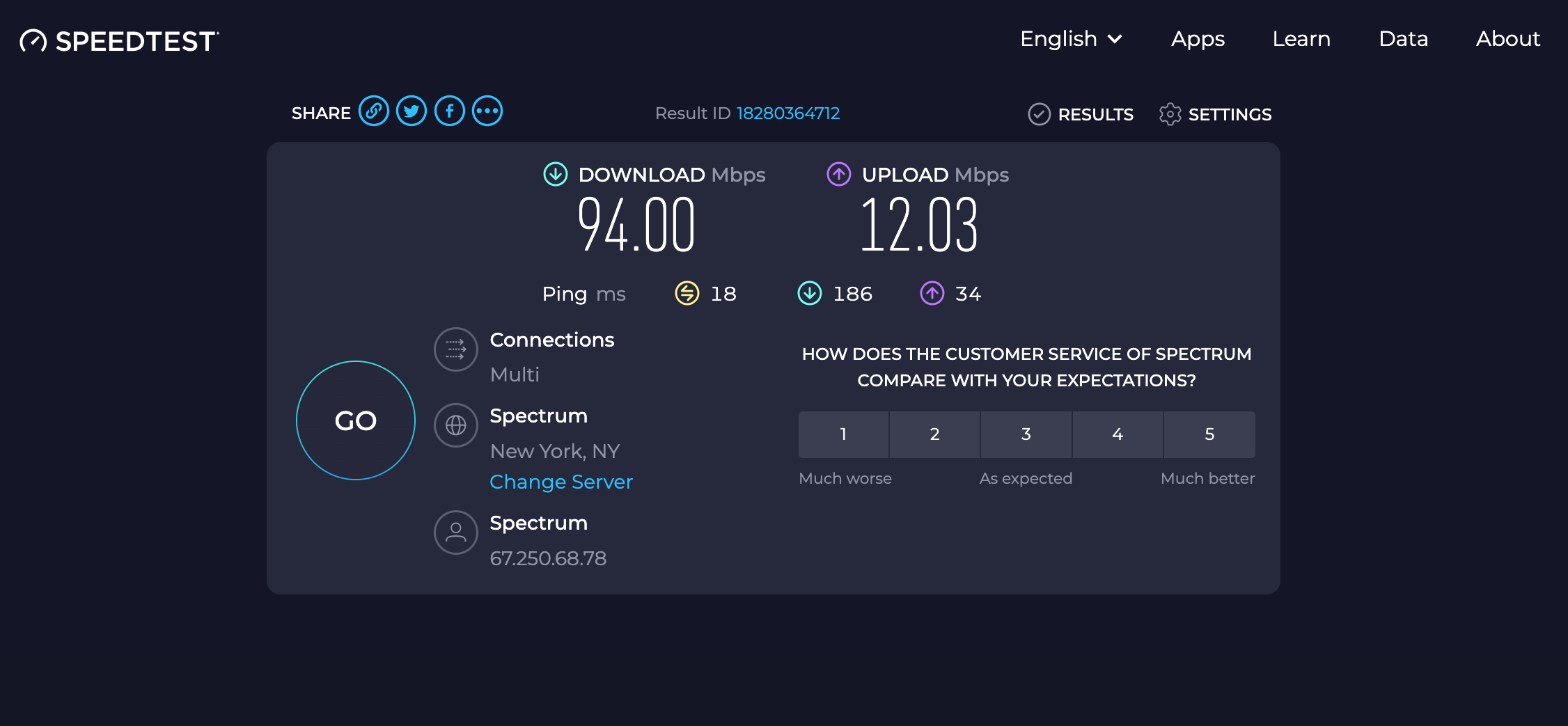
Speeds on ISP equipment
Q: Do I really need to buy my own modem and router?
A: Yes. ISP rental gear is weak, locked down, and slows you down. Owning your own gear gives you full control.
Q: Can’t I just stick with WiFi?
A: You can, but Ethernet always wins for streaming. WiFi is for phones, laptops, and tablets, not your streaming box.
Q: What’s the point of a mesh network?
A: To kill dead zones. If one room has weak WiFi, mesh pods spread the signal evenly across your home.
Q: How fast does my internet need to be for 4K streaming?
A: This depends on your upload speeds, not your download speeds. That’s a new problem altogether. I say turn on WiFi 2.4GHz or use Ethernet for best results, since upload speeds are already so low.
Shop Now > Discord >
In Conclusion: Streaming Without the Stress
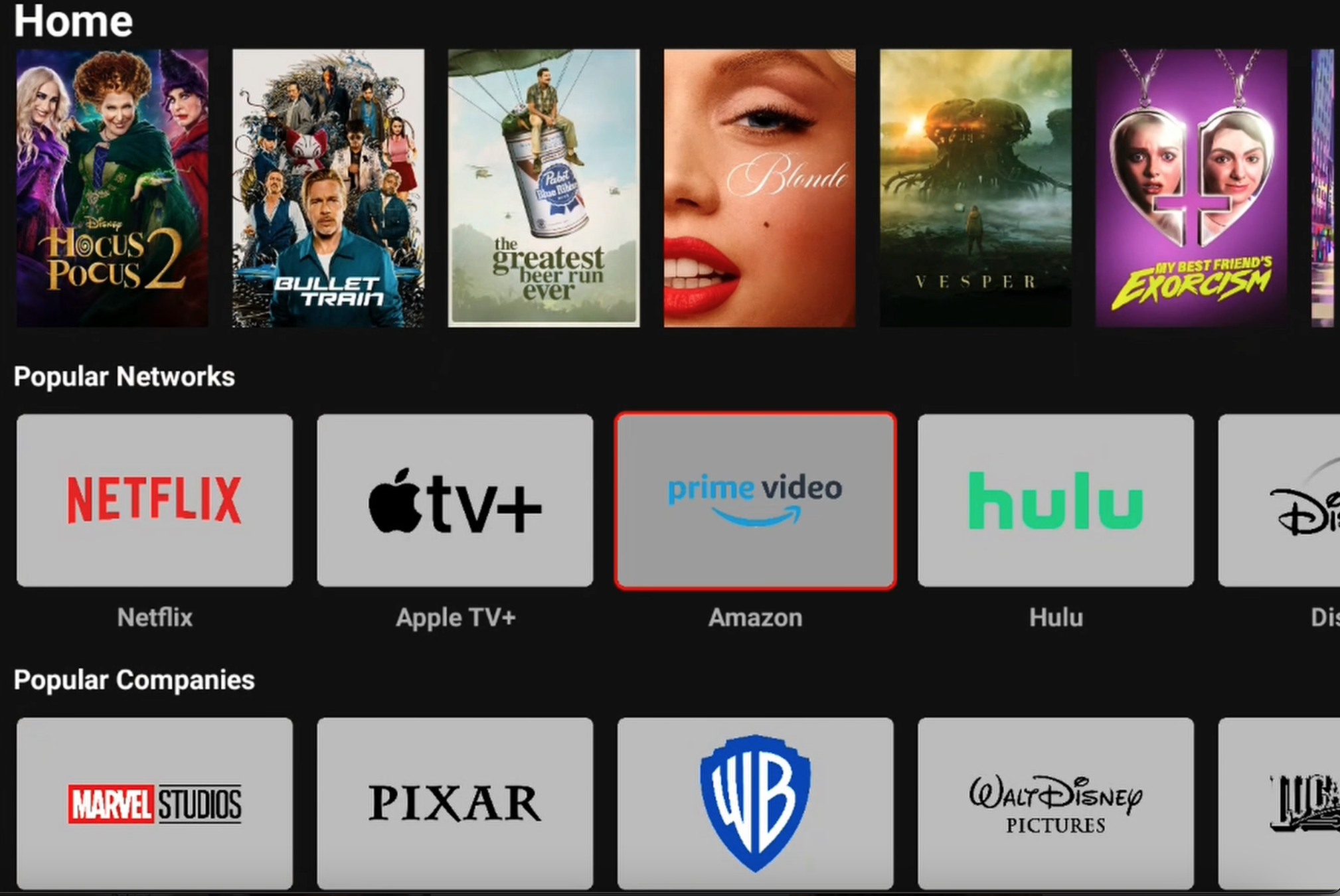
Free, all in one place, just click and play!
We’ve been helping people stream stress-free for years. The real question is, when are you going to join the community and start watching without headaches?
And guess what: we’re not just tossing you a device and wishing you luck. We’ve got a full Discord community ready to help, share fixes, and keep your system running smooth. Anytime you hit a wall, you’re never stuck, you’ve got backup.
See, anyone can sell you a product. Not everyone can give you a customer experience that feels human again. That’s what we care about most.
I could spend all day hyping up how powerful the device is… but instead, let’s be real. You’ve had buffering, you’ve had lag, and you’ve had enough. That’s the problem and our device solves it. Simple.
Why juggle 4 different apps just to watch one basketball game? (I can’t use the real name due to copyright.) But you know what I mean. One APK, one click, game on. That’s the way it should’ve always been convenient and stress-free.
Steve Jobs said it best: “It’s about the customer’s experience.” We’re just bringing that back.
So here’s the springboard moment:
👉 Stop wasting time with frustration. Stop juggling apps. Stop buffering in the middle of the big game.
🔥 Pick up your Jailbroken Nvidia Shield Pro today, join the community, and start streaming like it’s supposed to be smooth, simple, stress-free.
Shop Now > Discord >
Blog 1 of Series: Jailbroken Nvidia Shield Home Setup: Entertainment Room